
THE STORY BEHIND THE VIDEO
How do I put my pet’s real name and favourite things on a digital ofrenda?
For an exact name, collar or favourite toy, build those details in a still altar composition first and add readable text in an editor. Animating the result is a separate step that can change objects and lettering. Our current altar generator accepts one pet photo and a configured scene; exact prop references and custom inscriptions are not yet controls in the form.
By Mingzhu Wang ·
Choose details that identify this pet
A personal altar does not need every object the animal owned. Choose a photograph and one or two details that bring back a specific memory: a collar colour, a well-used toy or a handwritten sentence about an everyday habit. Decide which details must stay exact.
Separate the real record from the imagined setting. The real photograph and your own inscription can remain unchanged in a manual composition. Generated flowers, candlelight and camera motion can provide atmosphere if you want them.
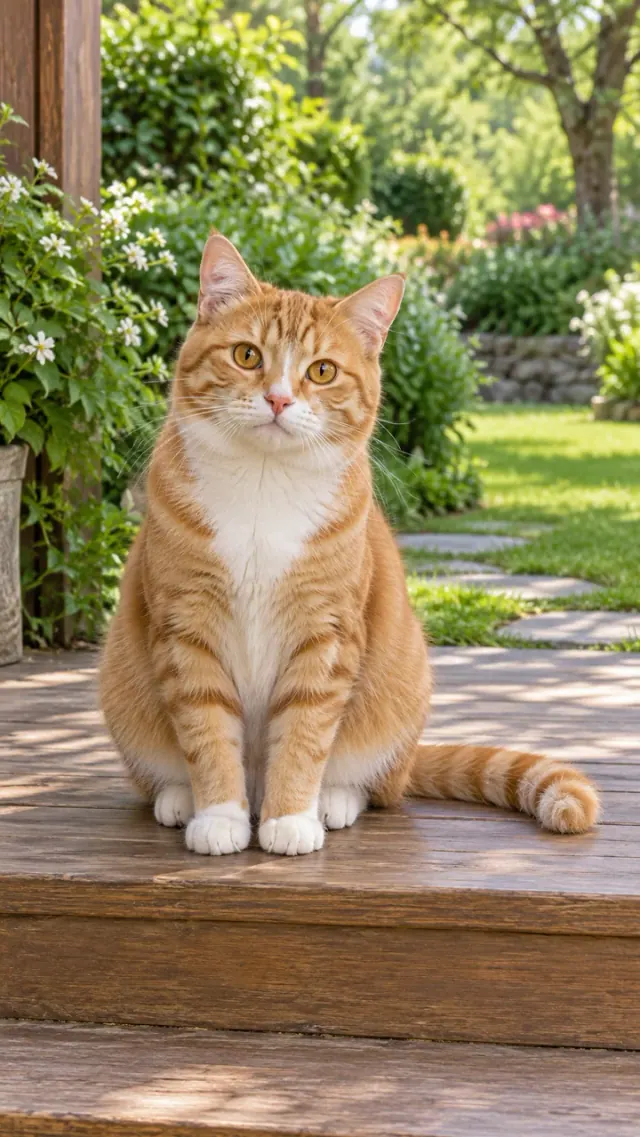
Complete fictional cat-altar example from the current scene. Exact user-supplied names, toys and multiple object references have not been demonstrated by this sample. Open the original MP4 ↗
A controllable still-image workflow
Create a vertical canvas in an editor you already use. Place a photo of the pet in a frame layer. Put photographs or drawings of the objects on separate layers and use artwork you own or have permission to include. Leave clear space for the name.
Add text as an editable layer after the objects are placed. Check the spelling at phone size, including accents and dates. Keep a version with layers so a later crop does not force you to recreate the whole altar.
If a simple tribute is enough, apply a gentle zoom to that finished still and export a short video. This preserves the exact lettering and composition more reliably than asking a video model to draw small text in motion.
- Keep the original pet photo unchanged on its own layer.
- Add one or two meaningful objects on separate editable layers.
- Leave clear space for a readable name or date.
- Keep an editable project and a flattened copy for any animation test.
- Add exact lettering after generated motion if it must remain stable.
Plan motion around the objects you want to keep
For image-to-video, ask for small environmental motion: light shifting across a frame, a slow camera move or a few petals drifting behind the portrait. Large changes of viewpoint require the model to invent unseen sides of toys, frames and collars.
A pet photograph becoming a framed altar is a transformation; an already assembled altar moving gently is an animation. They are different tasks. Label references by their role so the model is not asked to turn a toy photograph into the animal.
Original planning brief for testing in an image-to-video tool that accepts a prepared composition: Keep the supplied pet portrait and arranged personal objects stable. Add gentle warm light, a restrained drift of original flower petals behind the frame and a slow forward camera move. Do not invent another animal, change the collar colour or turn the portrait into a different pet. Keep the plaque area blank; exact name and dates will be added later as editable text.Why exact names should be the last editing step
Generated lettering can change between frames, especially when it is small or decorative. Adding the name after generation gives you control over spelling, placement and how long the viewer can read it. Use a simple typeface and enough contrast with the background.
Keep the text away from the pet’s face and the edge where a platform may place buttons. Watch the ending: a name that appears for only a fraction of a second is not useful. You can add the same caption to a still tribute if you decide against generated motion.
Current scene and the next test
The existing pet-ofrenda scene takes one JPG, PNG or WebP pet photo up to 5 MB and generates a ten-second vertical 720p MP4 with Seedance 2.0 Mini through EvoLink. The complete cat sample shows that configured treatment; it does not prove exact custom props or name text.
We have recorded separate tests for object fidelity, portrait identity, stable blank plaque space and a final editable-text workflow. Those are content and product-development targets, not features already available for purchase.
You can use the manual layered workflow now without paying for this site. If you choose our current generated altar instead, use the configured scene only when its demonstrated treatment fits your goal. A personally meaningful name does not need to be generated to belong in the tribute.
Questions before you decide
Can I upload my pet’s toy as another reference here?
The current altar form accepts one pet photograph. It has no separate toy or collar-reference input. Use a manual layered composition for exact personal objects while that capability is being tested.
Should I put the name in the prompt?
For exact spelling and stable readability, add the name after generation in an editor. The planning brief above leaves space for that final text layer.
Is this the same as making a physical ofrenda?
No. It is a digital composition workflow. The physical display can use the real photograph and objects, with placement appropriate for any living animals in the home.
This guide is published by the tool’s operator. It was prepared with AI writing assistance and checked against this site’s configured features and owned samples.